Powerful 3D tools without the complexity
Use this guide to move from your first shape to a checked, print-ready model.
1. Workspace & navigation
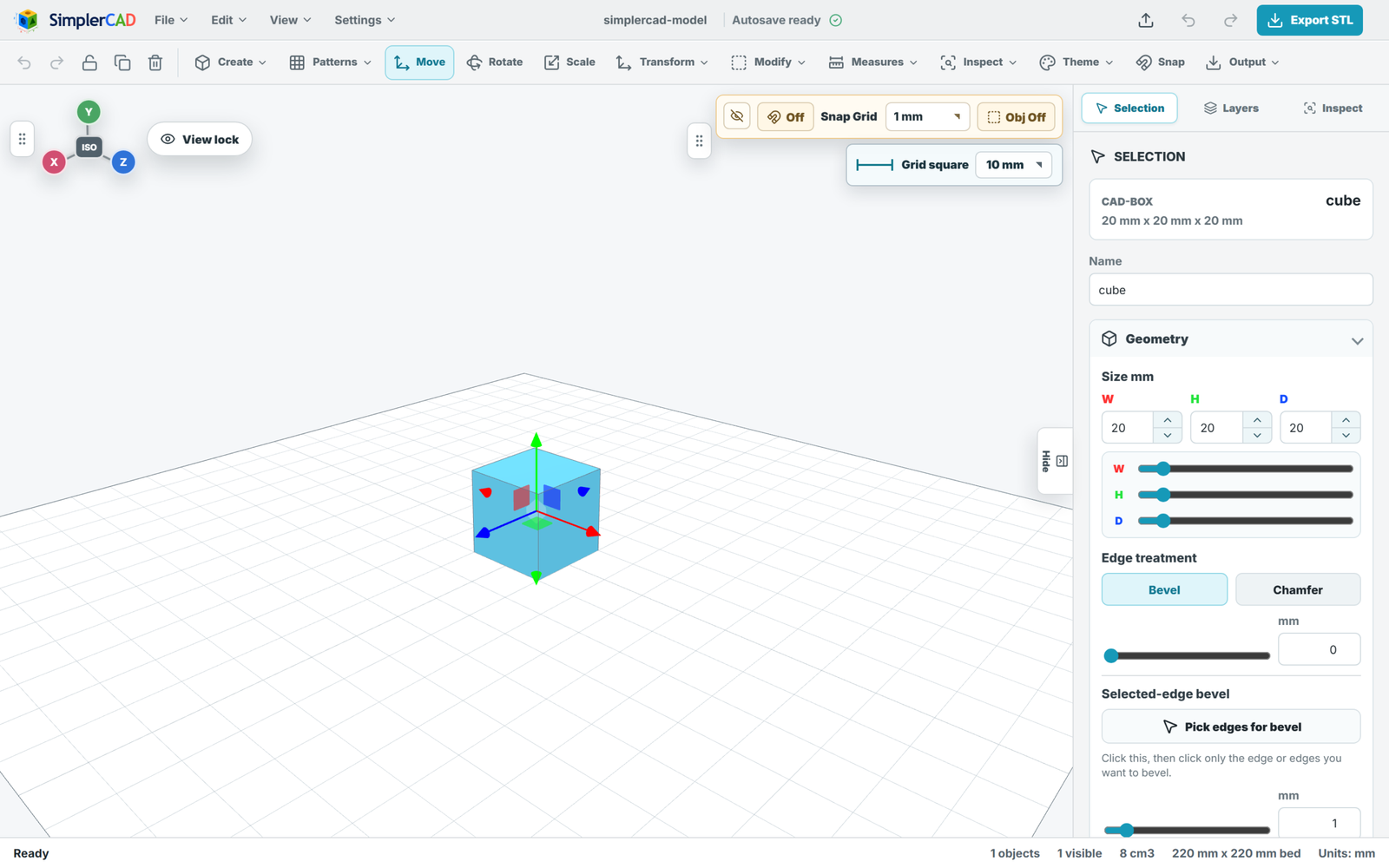
Your scene sits on a virtual 220 mm print bed with a reference grid. Orbit, pan and zoom to inspect your model, and jump to standard views with a click.
Print bed & grid
A 220 mm bed with a reference grid shows real-world scale as you build.
View gizmo
Snap to Isometric, Top, Front or Right views, plus one-click Fit view.
Units
Work in millimetres or inches — every dimension and volume updates instantly.
Grid & object snapping
Snap moves to a grid (0.1–10 mm) or snap objects to each other.
Workspace themes
Light, Gray (dark) and Glass interface themes.
Scene backdrops
Studio, low-poly Landscape, or an animated Storm scene with optional ambient sound.
2. Creating objects
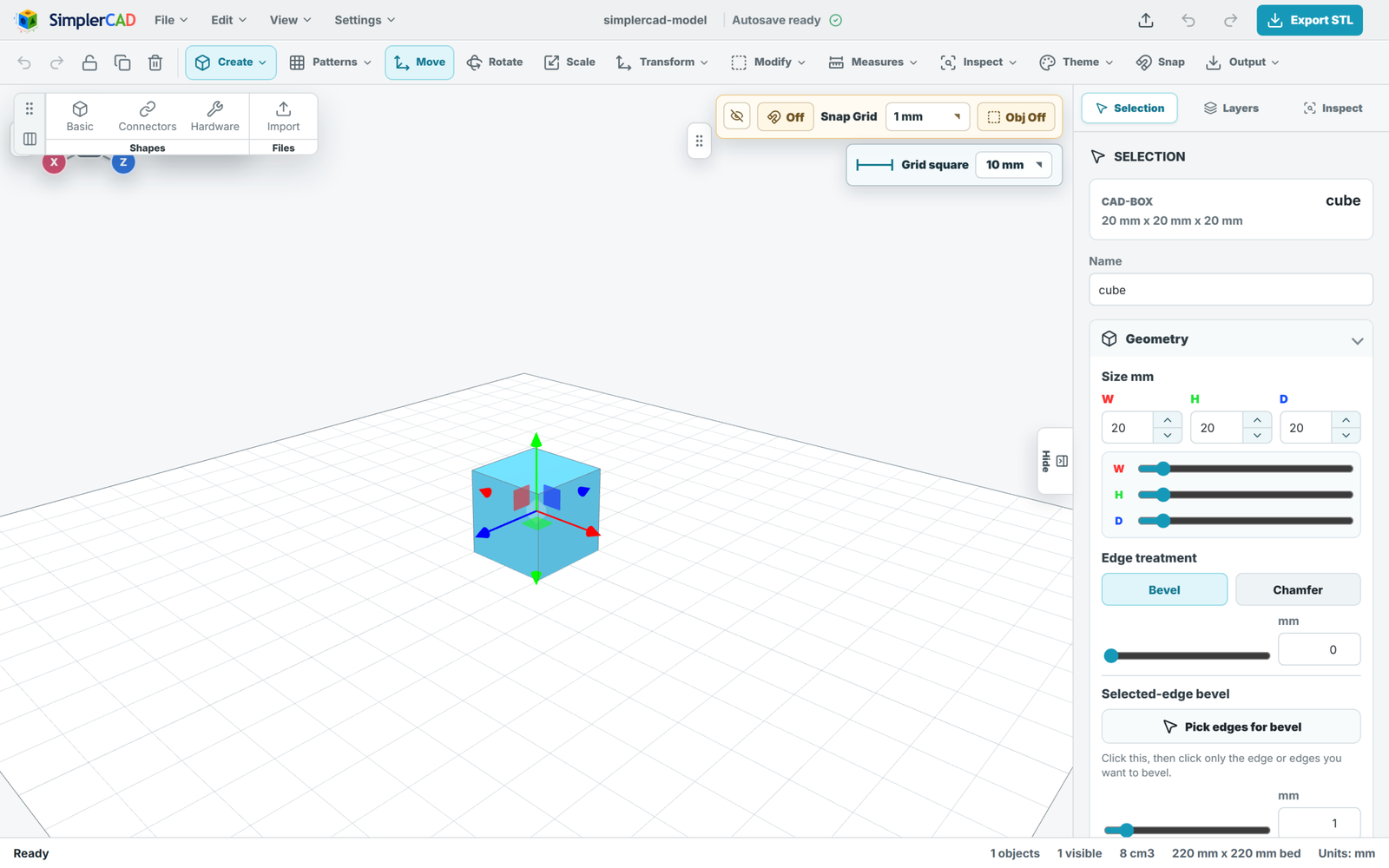
Start from a library of parametric primitives, ready-made connectors, and printer hardware fittings — or import your own STL and GLB models.
3. Patterns
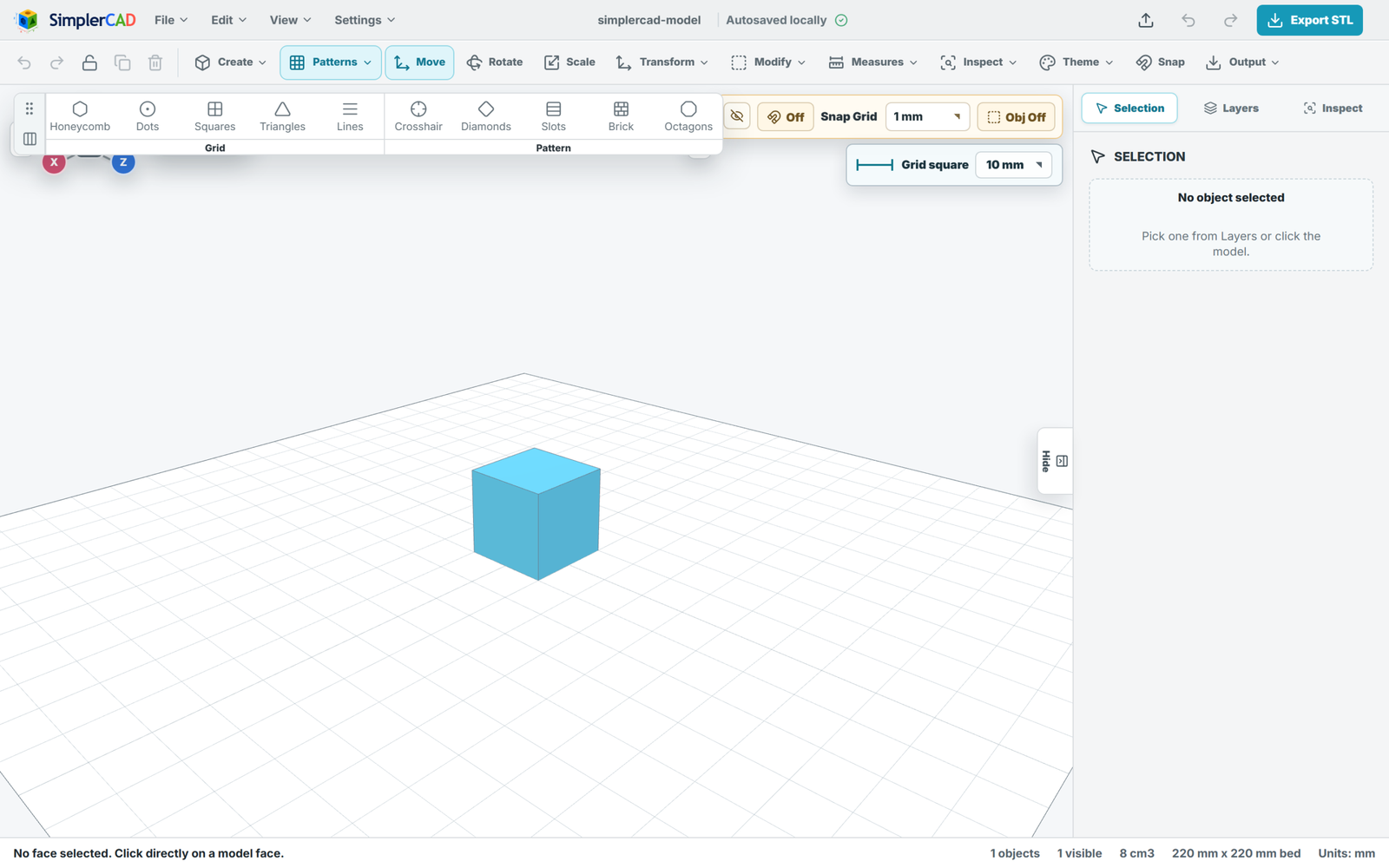
Generate perforated panels and decorative lattices in one click. Each pattern is a printable plate you can size and then subtract from other parts.
4. Transform & arrange
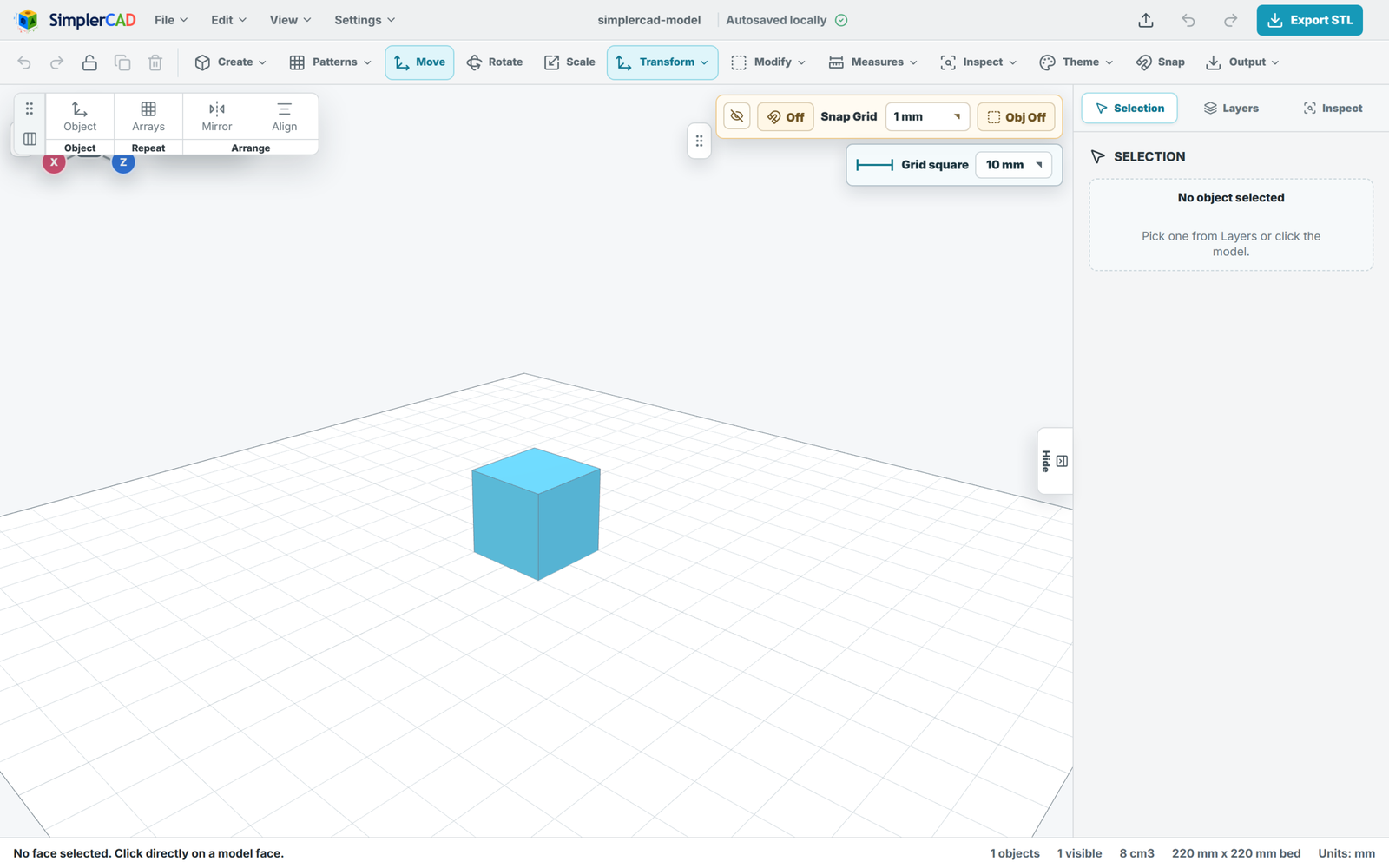
Position and duplicate parts precisely with on-screen gizmos and numeric controls.
Move · Rotate · Scale
Interactive gizmos plus exact numeric entry.
Floor & Center
Drop a part flat onto the bed, or centre it on the origin.
Mirror
Mirror across the X, Y or Z centreline.
Grid array
Duplicate into rows and columns with independent spacing.
Circular array
Repeat around a centre point with a set count and radius.
Duplicate
Copy the selection in place, ready to reposition.
5. Align
Line parts up to the bed, to each other, or to a chosen target with edge- and centre-based alignment on every axis.
Align to a target
Choose the bed or any object as the reference and place the selection against it.
Per-axis alignment
Align to min, centre or max on X (Left/Center/Right), Y (Bottom/Middle/Top) and Z (Front/Center/Back).
Align objects together
Select multiple parts and align them to a shared edge or centre.
6. Modify & mesh editing
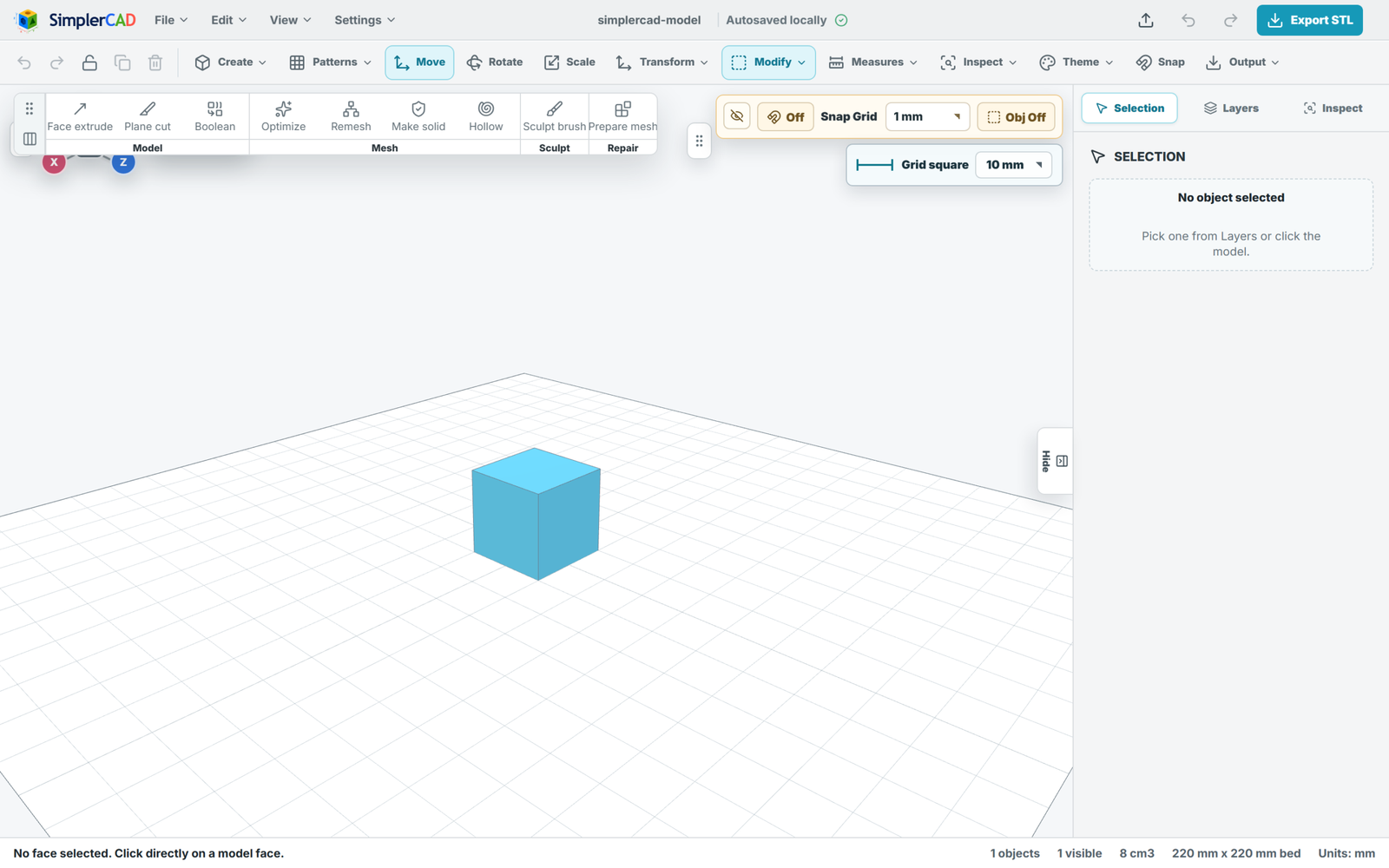
Go beyond primitives with direct mesh editing, cutting, and optimisation — all computed in a background worker so the interface stays responsive.
| Tool | What it does |
|---|---|
| Face extrude / intrude | Pick a face and push or pull it out or in, with an optional taper scale. |
| Knife (plane) cut | Slice along X, Y or Z at a set offset, keeping either or both halves — with a live preview. |
| Reduce | Lower triangle count by a target percentage to lighten heavy imports. |
| Smooth | Relax the surface with adjustable strength and iterations. |
| Adaptive remesh | Rebuild the mesh to a target edge length for cleaner topology. |
| Make solid | Voxelise a shell into a watertight solid, with adjustable voxel size and gap closing. |
| Hollow | Shell a solid to a chosen wall thickness to save material. |
| Split loose parts | Separate a mesh of disconnected islands into individual objects. |
| Repair | Fix non-manifold and open-edge issues so a mesh is print-ready. |
7. Sculpting
A brush-based sculpt mode for organic shaping, with masking and symmetry.
Brush actions
Inflate, Deflate, Smooth, Flatten, Grab, Pinch, Crease and Sharpen.
Masking
Mask and Unmask regions to protect areas from the brush; clear anytime.
Brush control
Adjust radius, falloff and strength for fine or bold strokes.
Symmetry
Mirror strokes across a local X, Y or Z axis.
8. Boolean operations
Combine and cut solids with a robust CSG engine, plus fast shortcuts for common joins.
Union
Merge two solids into one watertight body.
Subtract
Cut the tool shape out of the target.
Subtract filled
Cut while filling large voids but keeping small through-holes.
Intersect
Keep only the volume the two shapes share.
Fast attach
Bond meshes instantly without solving intersections.
Split with cutter
Use a shape to divide a part into separate pieces.
9. Measure
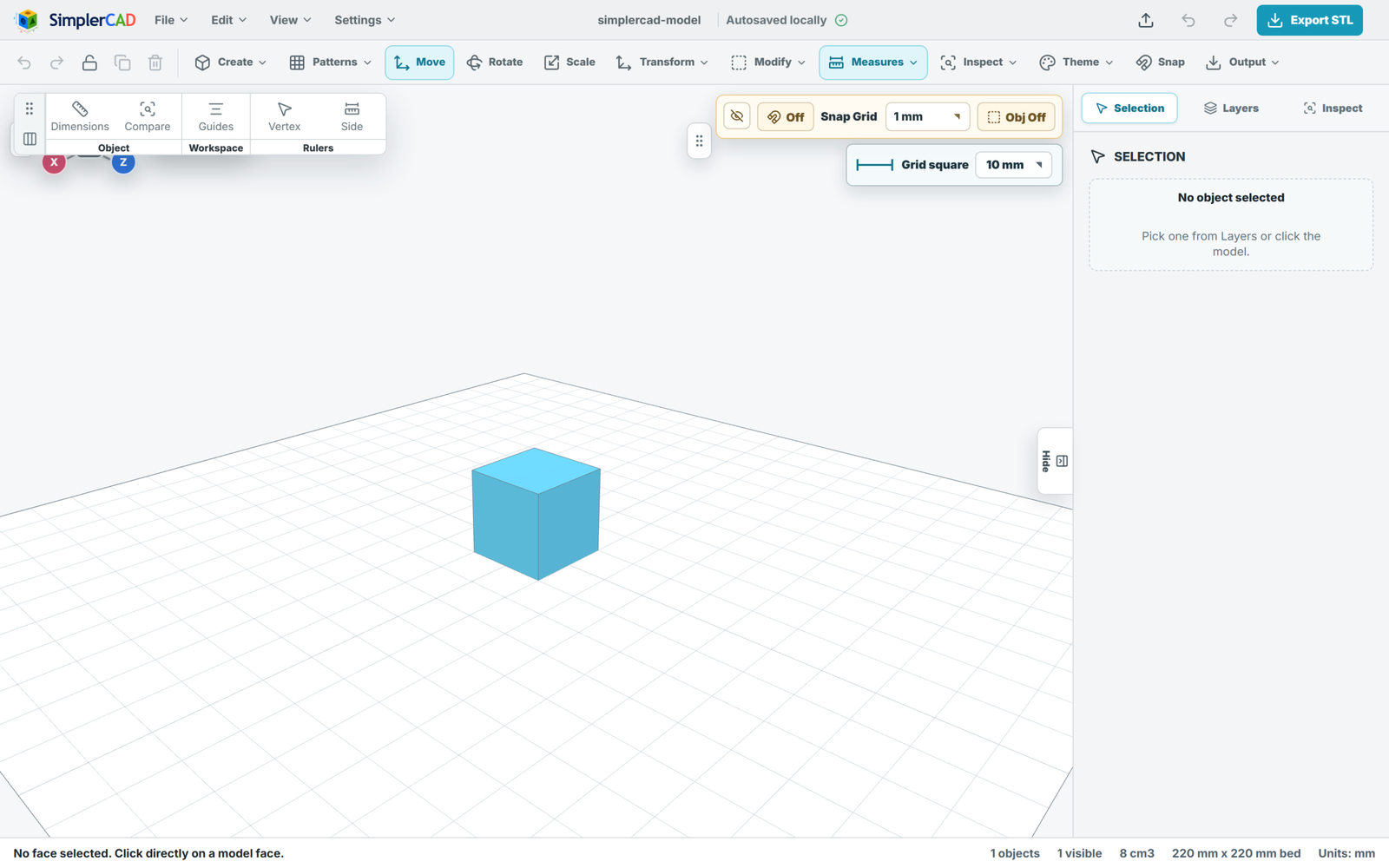
Confirm real-world dimensions before you print.
Dimensions & all measures
Show the bounding size of the selection, or reveal every measurement at once.
Alignment guides
Overlay guide lines relative to a chosen reference.
Shortcut: MVertex ruler
Two-point measuring between any points in the scene.
Side measure
Pick object sides to measure the distance between them.
Compare
Measure the selection against another target object.
10. Analyze & print checks
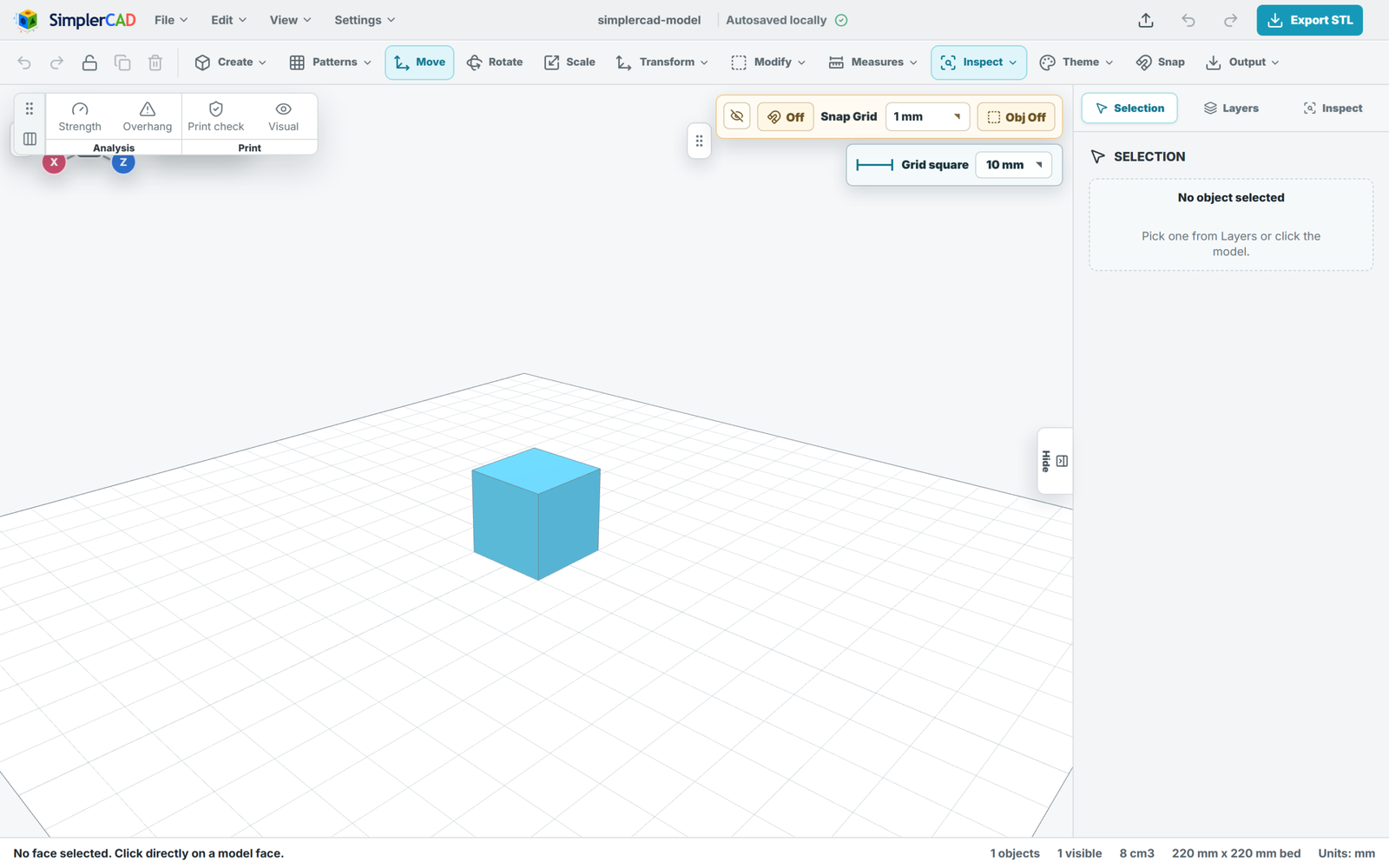
Catch problems before they reach the printer, with geometry-based analysis and a full print-readiness report.
| Check | What it tells you |
|---|---|
| Relative strength | A cross-section bending scan highlighting where a part is likely weakest, with a heatmap and low/moderate/high risk per axis. |
| Overhang analysis | Flags surfaces steeper than your chosen angle threshold that may need supports. |
| Print check | Scans meshes for manifold and topology issues and reports what needs repair. |
| Bed fit & solid estimate | Confirms parts fit the bed and estimates solid volume and PLA weight. |
| Inspection view | A dedicated shaded view for examining surfaces without editing. |
11. Appearance & view
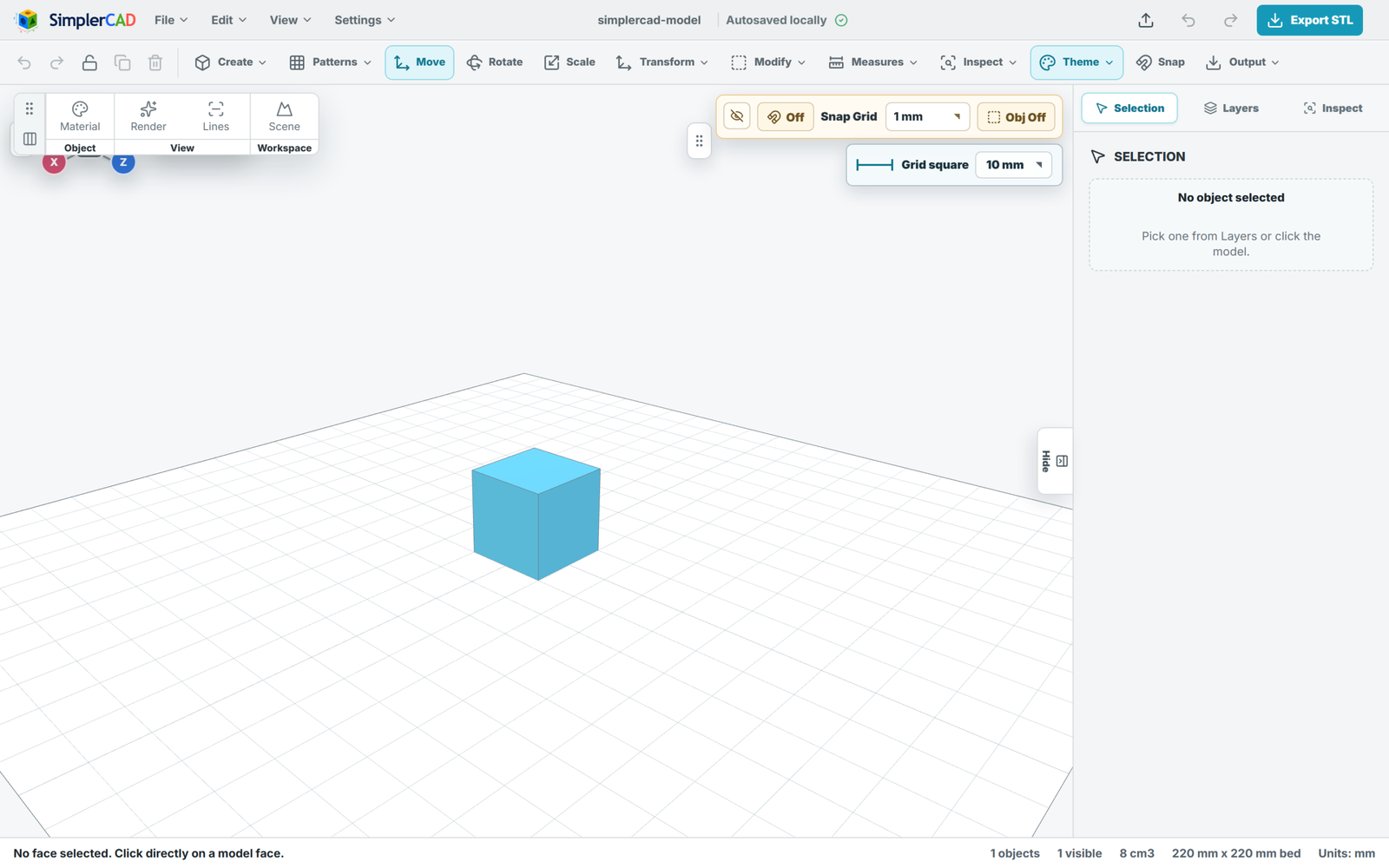
Control how models look on screen — from quick working shading to product-quality renders and technical line views.
Materials
Render modes
Default, Clean wire, Render, Studio, Clay and Advanced (ambient occlusion + edge smoothing).
Line display
Wire only, Wire + Solid, Wire + Passthrough, Solid, and Solid + hard edges.
Edge detail & colour
Professional, Hard-edges-only or Detailed line modes, with a chosen edge colour.
12. Export & output
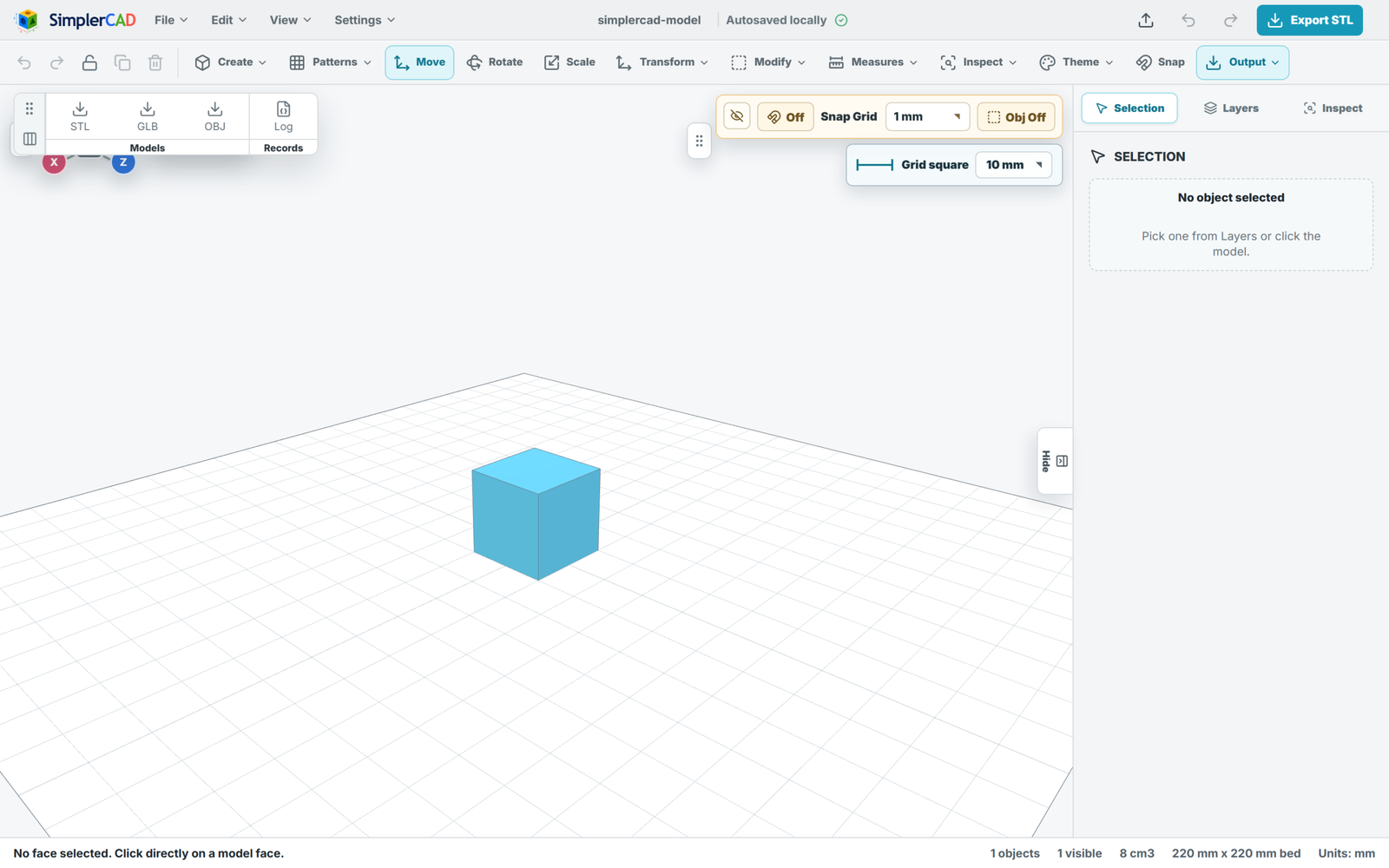
Export the selection or the whole scene in the format your slicer or pipeline needs.
STL
The standard 3D-printing format — selected object or all objects.
GLB
Full-scene or single-object glTF binary for viewers and engines.
OBJ
Widely supported mesh export for other CAD and rendering tools.
Operation log
Export a trace of the operations performed, for review and reproducibility.
13. Projects & autosave
Your work is protected and easy to pick back up.
Save & open projects
Store full projects — scene, settings and view — in SimplerCAD’s own project file.
Recent projects
Quickly reopen recent work from local browser history.
Autosave & recovery
Automatic local backups let you recover after an unexpected close, with multiple versions kept.
Undo history
Up to 80 steps of undo/redo across the whole scene.
14. VR Inspect
Step inside your design. SimplerCAD includes a dedicated WebXR inspection mode for viewing models at true scale on a VR headset — ideal for a final sanity check on ergonomics and proportions before printing.
15. Shortcuts & editing
Core editing actions are always at hand, and keyboard shortcuts are fully customisable.
| Action | Shortcut |
|---|---|
| Undo | Ctrl + Z |
| Redo | Ctrl + Y or Ctrl + Shift + Z |
| Delete selected | Delete |
| Alignment guides | M |
| Move / Rotate / Scale | Assignable |
| Duplicate, Fit view, Snap toggles, Ruler | Assignable |